You have the questions ready, the class has their devices out, and someone is already asking for the game code. Then another student cannot join, a third has opened the wrong page, and the room gets louder before you have even started.
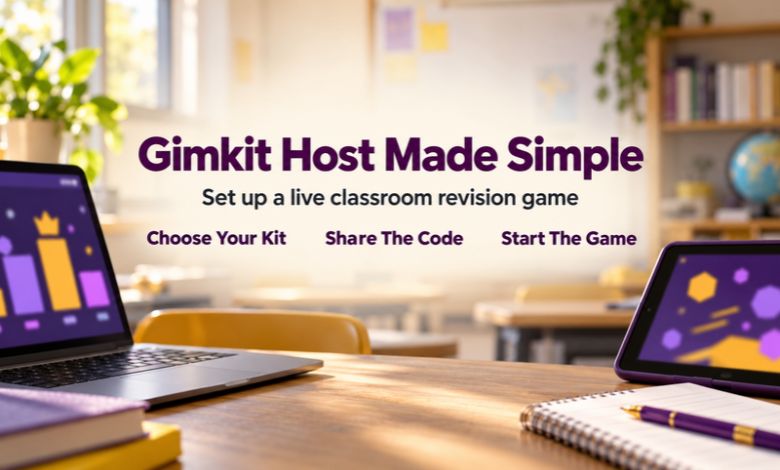
A little preparation makes this part easier. If you are searching for gimkit host, the basic process is straightforward: sign in, choose a question set, open the hosting options and share the code shown for your session.
Getting everyone into the game is only the beginning, though. The questions you choose and the way you finish the activity matter just as much.
What Being a Gimkit Host Involves
The host runs the live session. You choose the quiz content, decide which available game mode to use and guide students through joining. Once the game starts, you stay responsible for the activity, just as you would during any other classroom task.
Gimkit calls a question set a kit. Think of the kit as the lesson material and the game mode as the way students practise it. You can have a good set of questions and still need to adjust how you use them with a particular class.
That distinction is useful when planning. Start with what students need to learn, then look at the playing options.
Before You Share the Code
Open your account and check your kit before the class is waiting. Read every question, including the wrong answers. This is especially useful when you are using a set someone else has made.
Look for wording that could cause an argument. A question may have one answer marked as correct while another option is also reasonable. Fixing that beforehand saves you from stopping the whole class later.
Check the practical details too. Are the devices charged? Can students access the site through the school network? Will everyone play individually, or will some students share? These small decisions are much easier to make before the noise starts.
How to Host a Gimkit Game
Open Your Kit
Sign in to Gimkit and find the question set you want to use. If you are creating your own, keep it focused on the material students have already covered.
For example, a short science revision game might cover identifying forces. It does not need to include every topic from the term. A smaller, carefully chosen set gives you more chance to notice where students need help.
Choose the Hosting Option
Open the kit’s hosting or live-game option. Follow the labels on your screen, as the layout and button names may change.
Choose a mode available through your account. If this is your first time hosting, pick something you can explain comfortably. Trying unfamiliar gameplay with a class that is also new to it can make a simple revision activity feel complicated.
Check the Settings
Read the options for your selected mode rather than clicking through them quickly. Different modes may offer different settings, so use what appears in your account.
Plan the timing around the whole activity. A ten-minute game also needs joining time, instructions and a few minutes afterwards. Leave yourself room to discuss answers instead of ending the lesson while students are still playing.
Let Students Join
When the lobby is ready, show the join code clearly. Ask students to open Gimkit’s joining page and enter the code displayed for that session.
Give one instruction at a time. First, get everyone onto the right page. Then ask them to enter the code and follow the prompts. This is easier to manage than explaining the whole process over several conversations.
Check that the class is ready, explain any remaining rules and start the game.
Which Game Mode Should You Choose?
Choose a mode that your class can manage within the time you have. A more involved game may be enjoyable, but students still need time to understand how it works.
If your aim is quick vocabulary practice, keep the setup simple. If the questions involve calculations or careful reading, allow students space to think. Watch whether they are actually reading or simply choosing answers to get back to the game.
You do not need to introduce a different mode every lesson. Using a familiar one can help students settle faster because they already know the routine.
Write Questions That Are Worth Answering
There is a difference between a question students can guess and one that checks understanding. If the wrong answers are obviously ridiculous, even an unfamiliar topic can look easy.
Suppose you are reviewing mass and weight. Asking students to choose between sensible alternatives can reveal confusion about units or meaning. That gives you something useful to discuss afterwards.
Keep the language direct. Long sentences can turn a subject quiz into a reading challenge, particularly for younger learners or students working in an additional language.
A few accessible questions at the beginning can help students get going. After that, include questions that ask them to apply what they know.
Keep an Eye on the Room
Once the game begins, take a moment to look away from your own screen. Notice who is involved, who is waiting for help and who appears to be clicking without reading.
A quiet student may need help with the instructions rather than the subject. A confident player may understand the game very well but still struggle to explain an answer.
Ask an occasional question as you walk around: “What made you choose that?” The explanation can tell you more than the result alone.
Set expectations about names, noise and respectful behaviour before playing. Students should be able to enjoy the competition without feeling embarrassed about mistakes.
When Someone Cannot Join
Start with the simplest checks. Is the student on the correct page? Have they entered the code from your current session? Is their device connected to the internet?
Ask them to compare their entry carefully with your screen. It is easy to miss a digit when everyone nearby is already joining.
If several students have the same problem, check the host session and the classroom connection. If only one device is affected, investigate that device before restarting the activity for everyone.
Have a small backup task available. Students might answer the same questions in pairs while a connection problem is being sorted out.
Check Account Features Before Planning
You may find tutorials showing options that do not appear in your account. They could describe an older layout, a different plan or features you cannot currently access.
Before promising students a particular activity, check what your dashboard offers. This applies to game modes, hosting limits and any paid features.
If you want students to work independently later, check the assignment options separately. Live hosting brings the group together for a session; homework needs its own instructions and expectations.
Conclusion
A good Gimkit host makes the activity easy to follow. Prepare the questions, check your available options and give students clear joining instructions.
After playing, bring the class back to the subject. Revisit a confusing question or ask students to explain an answer in their own words. That short conversation helps turn an enjoyable game into useful revision.
Frequently Asked Questions
1. How do I host a game on Gimkit?
Sign in, open a kit and select the hosting option. Choose an available mode, check the settings and follow the on-screen steps to open your session.
2. Where do I find the Gimkit game code?
Use the code displayed for your active host session. Show it clearly so students can enter it on Gimkit’s joining page.
3. Can I be a Gimkit host with a free account?
Check the features currently included in your account. Access can vary, so confirm that the mode you want is available before preparing the lesson around it.
4. Why can a student not join my game?
Check the joining page, code and internet connection first. Also confirm that your session is still active and accepting players.
5. How do I know whether the game helped students learn?
Ask a follow-up question after the game. Have students explain their reasoning or answer a similar question independently, then use their responses to plan further practice.